Create the Notion Connection
A Connection is how a program signs in to Notion. It is not a person and it has no password: it uses what's known as a token, a long series of random alphabets/numbers/symbols that can be used in place of a username and password.
A Connection starts with access to nothing at all, you have to give it access to pages manually, which we'll do on the next page.
Setting up the Connection
Note that you must be the owner of the workspace to do this (this means you probably won't be able to do this in your company unless you're the administrator of Notion)
Go to the Developer Connection portal on Notion. This is where we create the integration (a Connection, in Notion's terms). Sign in if it asks you to and note your Workspace name.
You should see this header:
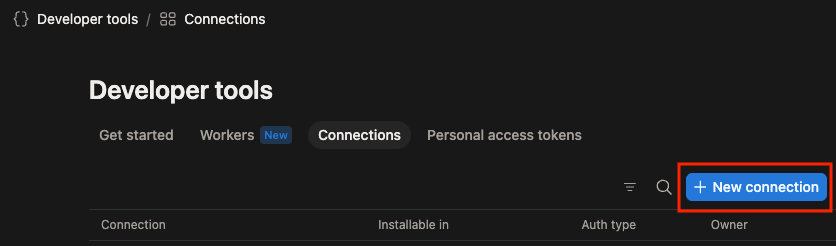
Click on New connection.
You should see a dialog pop up:
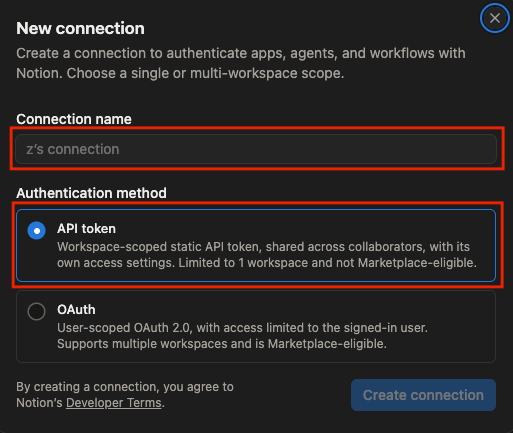
Give a name you would recognise later in the Connection name, select API token, and click on Create connection
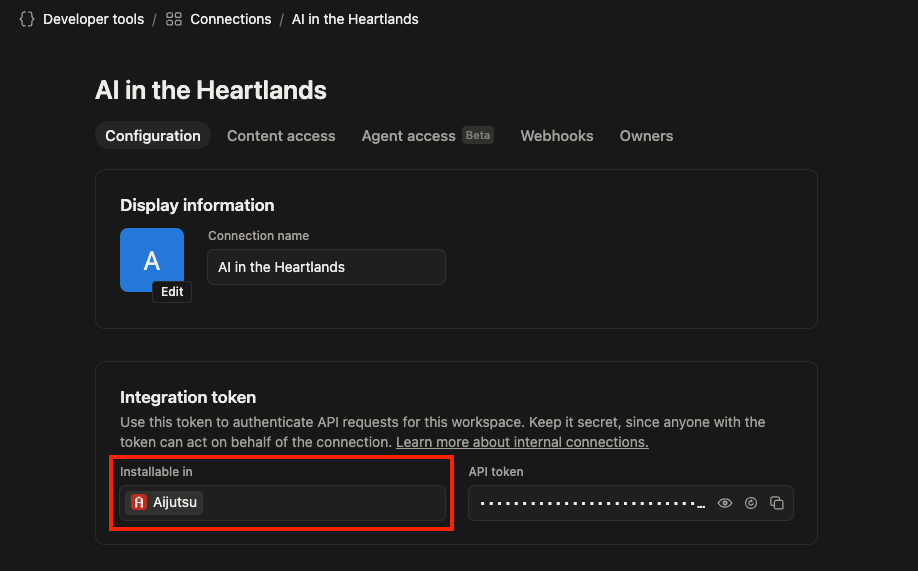
Check that the Installable in field indicates your Workspace name (from step 1)
The API token allows anyone access to your data, keep it away from others. We will use this token to allow our bot to access data
Observe the Capabilities section, this is where we can assign user permissions.
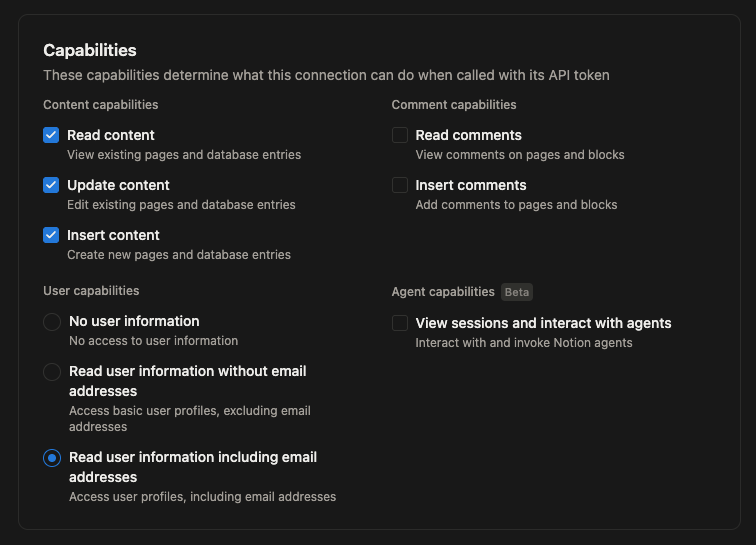
- Set the User capabilities to No User information if you'd like
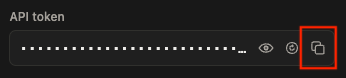
Copy the API token by clicking the copy icon
WARNING
The token is a password for your Notion workspace. Anyone who has it can read and change everything the connection can reach. Don't put it in a chat message, a photo, or an email. You need it in the next step, so keep it somewhere safe until then.
Go to your terminal where NanoClaw lives and use the command:
shmake add-notion-connectionYou should be prompted to enter in your Notion connection API token, paste from your clipboard into the field
You should see

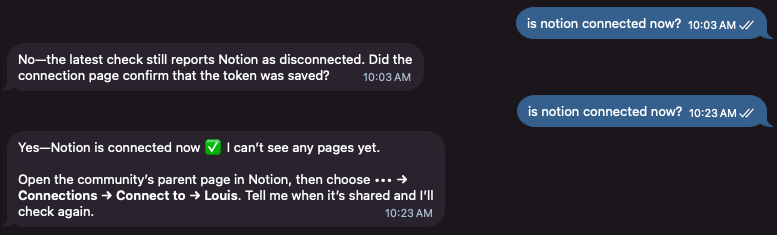
You can also ask your bot if Notion is connected and it should now respond with a yes, although it can't see any pages:
Next
Your connection exists and NanoClaw has its token, but it still can't see a single page. Fix that next: Connect your Notion page.